As soon as all entities to be transformed have been selected and the transformation parameters have been set, a Preview button (
 ) is displayed on top of the selection list, in order to enable you to alternatively display/hide a preview of the transformed entities. When the set of entities to be transformed is a big one, disabling the preview can help you speed up operations.
As soon as all entities to be transformed have been selected and the transformation parameters have been set, the following button shows up on top of the selection list:
 . You can click it to reset parameters to their original values thus cancelling the previously set transformation without applying it and without quitting the command (the same command is also available in the context menu which shows up when you right-click). The reference system (shown by the handles) will be reset to its initial position and orientation.
When a transformation is applied to some entities, the parameter settings used in the operation are stored by the program. Next time you start the same transformation command, the
 button is displayed on top of the selection list. If you click it, the parameter settings will automatically be restored to the values used in last transformation and applied to the selected entities when you select
  or
or  .
.Once you have moved the handle, you can always reset it to its starting position by right-clicking and selecting Reset Transformation in the context menu.
To make copies of the selected entities according to the defined transformation (rather than moving them), select the Copies check box and type in the number of copies to be created.
Under More Options you can find few additional options:
| Linked copies | (3D environment only) If selected, copies of objects with a history (such as solids, parametric entities, and reference dimensions) remain related to their source entities and are therefore subject to any changes made to the dimensions or variables of the original entities. If not selected, the copies become constant. For example, the transformation of a sweep solid loses its sweep dimensions. | |
| Associative Transformation | (3D environment only) It enables you to make associative transformations which retain a link to the entities they derive from. Available in the selection list only:
|
|
| Keep attributes | If selected, copies of objects retain the attributes (such as color, line type, and layer) of the original. If not selected, copies assume the corresponding current property values. | |
| Inside group | (2D environment only) — Available only if
Copy check box is selected. If selected, the selected entities are copied inside the groups. If not selected, the selected entities are copied outside the groups. This option works only when group (open or closed) and the Group check box in the Inside area is selected from Selection Filter dialog box (using Select  Filter from the context menu).
|
| Copying curves of the Curve On Surface type Suppose you make a copy of a curve of the Curve On Surface type. 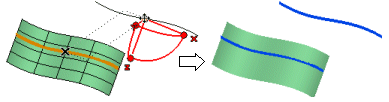 As the copied curve is still of the Curve On Surface type, a copy of the original reference surface is automatically created. The surface copy is hidden by default, but if you move the cursor onto the copied curve, its dotted outline will be displayed: 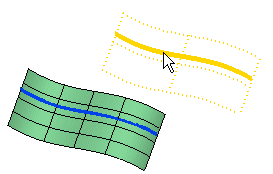 To unhide the surface, right-click on the copied curve and select Show Base Surface. 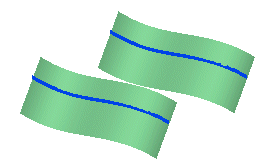 |