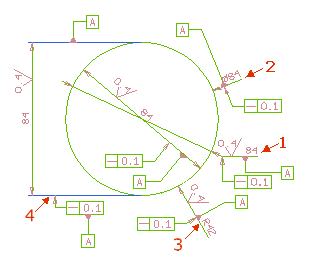
The surface texture can be attached only to a measure line for the following type of dimensions:
Version 2009.3 introduces the following enhancements and improvements to the Drafting & Dimension functionalities.
In this version, you can attach dimension entities to a measure or witness line of a dimension, as shown in the image below.
The surface texture can be attached only to a measure line for the following type of dimensions:
Note that the linear dimension is supported only when it is created by choosing the following dimension types from the Type drop-down list:
|
The feature control frame and datum reference can be attached to a:
To implement the above behavior, the Reference Entity selector in the Surface Textures, Feature Control Frame, and Datum Reference selection lists now enable you to select a dimension (linear, diameter or radial) as a reference. In case of the Datum Reference command, you can select the feature control frame dimension that results in a datum reference attached to the bottom line of the feature control frame symbol.
The surface texture, feature control frame, and datum reference dimensions can be moved only along the measure or witness lines of the dimensions they are attached to. When the dimension is moved, they will also move along with it.

To support GB standard, significant improvements have been made in the:
In the Detail View selection list, the new right arrow button has been introduced next to Name option. When selected, it enables you to select roman numerals (I to XII) from the drop-down list.
It is now possible to include a separator symbol in a drawing view notation, as shown in the image below (point 1). To implement this, the Show separator and Show separator check boxes have been introduced in the Document Properties and Edit Properties dialog boxes, respectively.
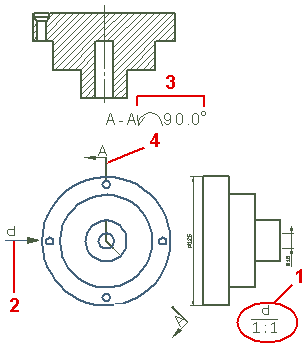
The following modifications have been made in the projection direction symbol, as shown in the image above (point 2).
In this version, it is possible to include angle of rotation and the new rotation symbols (right or left) in the developed sectioned view name, as shown in the image above (point 3). To implement this improvement, the Add to view name check box has been introduced in the Options/Properties dialog box.
The Closed full arrow visualization of a section line has been changed to completely filled arrow head (point 4, as shown in the image above).
It is now possible to have a section line without cutting the main view, as shown in the image above (point 4). To implement this improvement, the Only thickened portions option has been introduced in the Entity Properties dialog box.
In this version, it is possible to choose the dimension type from the Type drop-down list (in the Smart Dimension selection list) before selecting a geometrical entity.
The single line texts with vector fonts can be arranged vertically. Refer the "Enhancements in the Options/Properties Dialog Box" document for more details.
On enabling the vertical effects for a single line text, you are provided with the choice of selecting the Origin justification as Top center, Middle center, or Bottom center from the Text selection list.
In this version, you can move in any direction a diameter dimension that is not passing through the center. Start the Move Dimension command and select the dimension to be modified. Then, right-click in the Graphics Area to display the context menu with the following two new options:
| Free Dimension Direction | Enables you to move the dimension in any direction. |
| Fixed Dimension Direction | Enables you to move the dimension only in the direction it was originally placed. |
Note that these two are toggle options and hence, only one of them will be displayed at a time.
In this version, the stacking of manual balloons is possible for the Frame type: None. Both the horizontally and vertically stacked balloons will be separated by the "—" symbol.